![onside-logo 1.png]](https://info.onside.co.nz/hs-fs/hubfs/onside-logo%201.png?height=29&name=onside-logo%201.png)
From time to time, after you have been invited to use Onside by a property owner or manager, they may also share documents with you to review or sign.
The guide below will take you through how to access those documents and also share other documents with them, even as a free user.
Note: You will only be able to share documents with clients who show in your Clients list
Sharing documents to clients
Before you can start sharing documents, you'll need to be connected with your clients in Onside. To check, as a Company admin, log into your Onside web portal and click 'Companies'.
Once your company has been connected to your client's, you'll be able to start sharing and receiving documents in two ways.
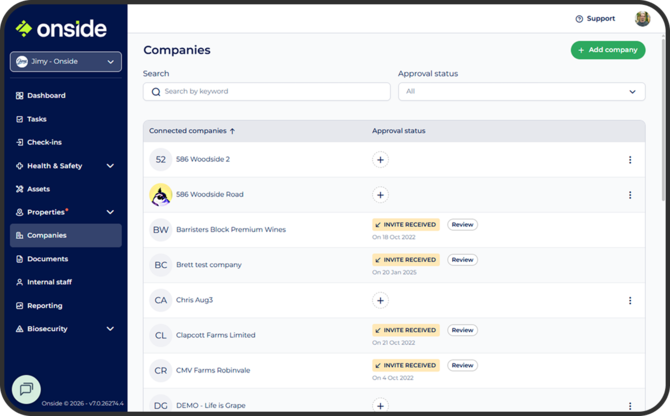
Share from your 'Companies' page
- Click 'Companies' in the sidemenu
- Click on the name of your client's company
- Click 'Add document' if the document is already there, or 'New document' to upload a new one.
- Click 'Send'.
- Select 'Send to company' and select their company from the list.
Share from your Documents page
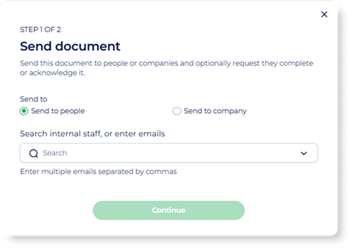 Click on the document and go to the green 'Send' button in the top right of the page (or from the quick access 3-dot button)
- Click 'Send to company' and select your client's company name
If the company name is not showing, add the company from the 'Company' page first 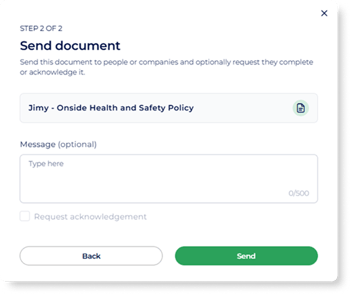 Once you're happy with the list of recipients, add a message to give more context. You can also set if they need to acknowledge the document, as well as by when.
If you will need to share many documents, you could share them all at once.
- Create a folder from the green 'Add' button at the top right of the page
- Click on the quick access
 button and 'Add to folder' for each document to go in the folder
 - Click on the folder then the white 'Requests' button
- Click 'Send folder'
- Continue with steps 2 and 3 from above.
Tip: You can also use the quick access button and share directly from the document's card.
Receiving documents
As a company admin, when your clients send you new documents, you would be notified by email. To access the document:
- Click on 'Companies' in the side menu
- Find and click on your client's company name in the list
- Select the 'Their documents' tab
- Click on the icon under the document name to preview and download it
As the document version is updated, by default you'll see the most up to date version, but you can always click the  icons to see older versions that were shared with you.
If you have any questions or need any help, you can reach us on 0800 ONSIDE (NZ), 1800 112334 (AU), or email Support@onside.co
If you have an idea for an improvement to Onside, let us know here.