![onside-logo 1.png]](https://info.onside.co.nz/hs-fs/hubfs/onside-logo%201.png?height=29&name=onside-logo%201.png)
From equipment to machinery, vehicles to chemicals, Assets in the Onside app will give you access to the information you need, whenever and wherever you need it. Accessing your asset information, manuals, SOPs, or even pre-start checklists is now just a few taps away.
Take a look at this video to find out more, or read on below.
Accessing assets
Using QR codes
.png?width=175&height=214&name=Toyota%20Hilux%20(6).png)
The quickest and easiest way to access assets is to scan its unique QR code. Admins of the company or property in Onside have access via the Onside web portal to download and print out these QR codes to attach.
 The Onside app has a built in QR code scanner, found immediately to the right of the property search bar. You'll find this faster than scanning with your camera.
If you scan the QR code of an asset you don't have access to, you can request access and will be notified when the request has been approved or declined.
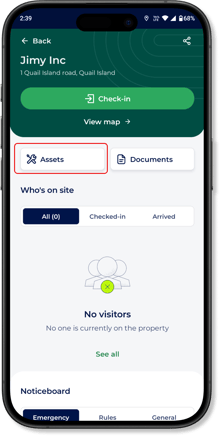
Home tab
If you're part of a property team in Onside, you'll have a 'My Properties' section at the bottom of the home tab. Tap on the name or picture of the property and then tap the 'Assets' button to access all assets associated with that property.
Property page
When you check in to a property, if you've been given access to the site's assets, you will also have the assets button (shown right).
More tab
If you're connected to many or all of your company's assets, tap on the 'More' tab in the app, then 'My company's assets' to find all the assets you have access to.
Asset documents and forms
.png?width=220&height=436&name=Assets%20-%20report%20issue%20(1).png)
Assets, documents, and forms have been designed to work with one another to give operational staff all the information they need right from the Onside app.
Once you've accessed the asset you're about to use, you'll be able to immediately fill out any forms linked with it, such as a pre-start checklist (shown right). From the asset page, you can also see when you last completed the form as well as when it was last completed by your colleagues, so no double work.
Linked documents will be available from the 'More' tab of the asset
Report an issue
When accessing an asset, if there is an issue you want to report or bring attention to, tap the 'Report asset issue' button (as shown in the image above) and the person who has been assigned to that asset as the "Responsible person" will be notified.
You can also use this feature to tag-out assets, as your issue will show to anyone else who uses the asset, until it is resolved by the responsible person or an admin.
If you have any questions or need any help, you can reach us on 0800 ONSIDE (NZ), 1800 112334 (AU), or email Support@onside.co
If you have an idea for an improvement to Onside, let us know here.