![onside-logo 1.png]](https://info.onside.co.nz/hs-fs/hubfs/onside-logo%201.png?height=29&name=onside-logo%201.png)
Included as part of your lone worker subscription is the ability to see where your staff are checked in to, what work they're doing, how long they've been on that site, and when they're due to check-out.
Take a look at this quick video, or read on for further information.
Click on the 'Check-ins' tab in the side menu of your Onside web portal to access your check-in dashboard. From here you can access and export your company's check-in records.
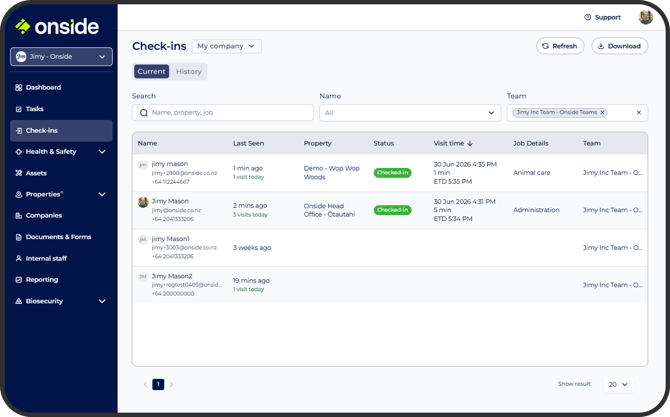
Here's a breakdown of what info is available in your Check-ins dashboard:
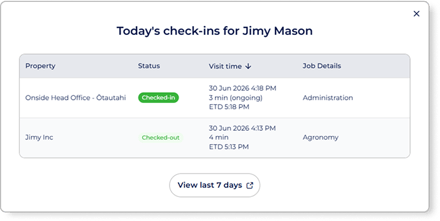 Last seen - When the team member last opened the app.
You can also get a breakdown of the property visits they've done for the day by clicking on 'x visits today' (shown right).
Property - The current property they are checked in to.
Status - Quickly see if they're currently checked in or out of a site.
Visit time - This is a full break down of when they arrived, how long they've been checked in to the site, and when they're expected to leave.
Job details - Many of the sites your staff go to will require them to advise what work they'll be doing. They can also advise further comments about their check-in, which will show here. Don't forget, you can also enable jobs for your company so you always have a record, no matter the sites they visit.
Team - See the teams your staff members are part of and filter accordingly. By default, all teams will be selected.
You can also choose to filter by a person's name or, if you use the search option, the property or job.
Check-in history
Click the 'History' toggle at the top of the screen.
By default, when you open this page it will show all of your company's check-ins for all time.
Use the search, name, and team fields to narrow down your data, then, once you're happy with the information, simply click the 'Download' button to get your report.
If you have any questions or need any help, you can reach us on 0800 ONSIDE (NZ), 1800 112334 (AU), or email Support@onside.co
If you have an idea for an improvement to Onside, let us know here.
Click on the links below to navigate to other Onside Teams help guides.
How do I use Onside Teams?
Lone worker - Members tab
Lone worker - Visited Properties tab
Lone worker - Reporting