![onside-logo 1.png]](https://info.onside.co.nz/hs-fs/hubfs/onside-logo%201.png?height=29&name=onside-logo%201.png)
Storing and managing your documents in Onside is great, but the real cherry on top is that, if you have an Onside Complete or Enterprise subscription, you can share and receive documents from your contractors and clients.
Adding your contractors and clients
Before you can start sharing documents, you'll need to link your contractors or clients to your Onside account. As a Company admin, log into your Onside web portal and click 'Companies' in the side menu to get started.
You'll have two tabs on this page 'My contractors' and 'My clients'.
The difference between the two will mostly depend on how you use Onside. If you manage properties, you would add the contractors who visit your sites. Whereas if you have a contracting company, you'd have clients you visit.

My contractors
- While on the 'My contractors' tab, click the 'Add Contractor' button
- Firstly, we recommend doing a search to see if your contractor's company is already in Onside.
- If it's not, click 'Add details' to enter their company name and the best email contact you have for their company (try not to invite individual contractors if possible). You also have the option of bulk inviting your contractors by downloading the template, completing it, then uploading.
- You can then copy an invite link which you could use in your own emails to your contractors, or you can click 'Send Invite' to send invites to their company admins. If they don't have an Onside account yet, they'll receive an email like this. If they're already using Onside, they'll get an email like this.
Once you've connected your company to theirs, you'll be able to start sharing and receiving documents. Your company will also show in their 'My clients' tab.
My clients
As a contractor, you can't add clients to your 'My clients' list just yet. As property managers, they would need to add you. Not to worry though, more functionality will be coming to this space in the coming months.
Sharing documents
Now that you have your company lists ready to go, you can start sharing documents. There are two ways you can go about this.
Share from your Documents page
-
Click on the document and go to the green 'Send' button in the top right of the page (or from the quick access 3-dot button).
-
Firstly, chose who you'd like to send the document to. You have 3 options and you can send to multiple at the same time;
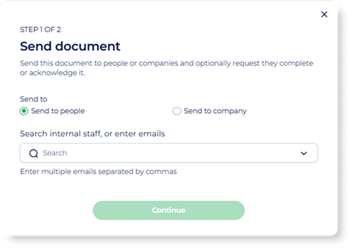 Staff - Select 'Send to people' and the dropdown list will be the staff already added to your company.
-
Individuals - Send to individuals external to your company by simply typing in their email addresses.
-
 Companies - Choose from the list of companies you've built up in your 'Companies' page.
Note: The company must be added to the 'Company' list before you can send forms to them.
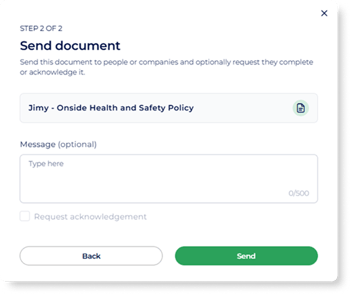
- Once you're happy with the list of recipients, add a message to give more context. You can also set if they need to acknowledge the document, as well as by when.
Share from your Contractor list
- Click 'Companies' in the side menu
- Click on the name of the company
- Click 'Add document' if the document is already there, or 'New document' to upload a new one.
- Follow the steps above, from Step 1.
Receiving documents
Once companies are added to your companies page, you will be able to receive documents. As a company admin, you would receive an email when documents are shared with you.
To access the document
- Click on 'Companies' in the side menu
- Find and click on your contractor or client's company name in the list
- Select the 'Their documents' tab
- Click on the icon under the document name to preview and download it
As the document version is updated, by default you'll see the most up to date version, but you can always click the  icons to see older versions that were shared with you.
Alternatively, you can also navigate to the Documents tab and click the 'Shared with me' toggle. Here you will see all documents you've received and from who.
If you have any questions or need any help, you can reach us on 0800 ONSIDE (NZ), 1800 112334 (AU), or email Support@onside.co
If you have an idea for an improvement to Onside, let us know here.