![onside-logo 1.png]](https://info.onside.co.nz/hs-fs/hubfs/onside-logo%201.png?height=29&name=onside-logo%201.png)
Keep up to date with the health and safety performance of your properties, checking visitor numbers, what jobs are being done, etc from your Onside reports. To get access to these reports, you must be a company or property admin.
Risks and incidents
-
Firstly, log into your Onside web portal
-
Depending on the type of report you're wanting, click on the 'Health & Safety' side menu item and then choose 'Risks' or 'Incidents'
- Click the 'Download report' button
- Choose your filters to specify the data to download.
Check-ins
- From your Onside web portal, click on the 'Check-ins' side menu item
- At the top of the screen you can choose between 'My Company', for your own staff check-in data, or 'My properties', for all visits to the properties you manage in your account
- Choose between the 'Current' and 'History' toggle and specify your filters to get the data you need
- Click 'Download'
Tasks
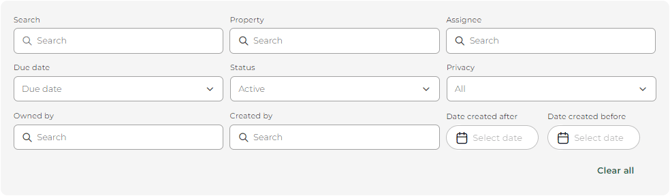
The 'Filters' button on your Task dashboard page determines the data included in your task reports. Set your filters accordingly, then click 'Download report' above the search bar. If you choose a PDF report, you'll also be able to include task photos in your report.
Assets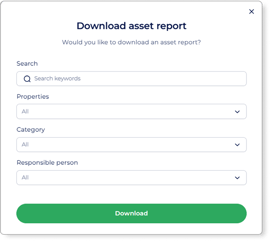
Accessible from the  button of the Asset dashboard. A pop up will appear for you to narrow down how you would like your asset report generated.
You can filter by
- Any search keywords
- Properties
- Category
- Responsible person
Forms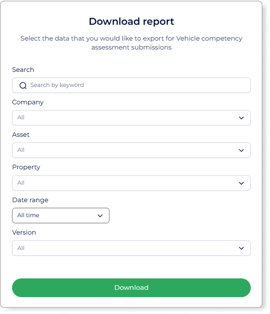
When a form has been used/completed in Onside, we call this a "submission". Generating reports for forms submissions can be done in three easy steps.
- Click on the form in your Onside web portal
- Click on the button next to 'Edit form' and choose 'Download report'
- A pop up (shown right) will then appear for you to filter the asset submissions for your report. Choose your filters, then click 'Download'.
FAQS
-
How are risks ordered in the reports?
Property risk reports are ordered by when they were last modified, not reported. From the most recent to the least. Onside Teams risk reports are ordered by date of report.
-
How are Incidents ordered in the reports?
Company incident reports - Ordered by Date of incident
Property incident reports - Ordered by alphabetical property name (if reporting on multiple properties), then by Date of incident.
If an incident is modified within the date range you've given, it will also show in the report, even if the date of the incident is outside the chosen date range, but has been updated in the timeframe.
-
How are check-ins ordered in the reports?
Check-ins are simply ordered from the most recent to the least. Combined property reports will be grouped alphabetically first, then by most recent to least.
Click below for examples of the different report types.
Risk report
Incident report
Visitor report
If you have any questions or need any help, you can reach us on 0800 ONSIDE (NZ), 1800 112334 (AU), or email Support@onside.co
If you have an idea for an improvement to Onside, let us know here.